

How to set the working hours of broadcasts with a calendar
To keep one-time broadcasts of a bot from going out at night or on days off, pick a working-hours calendar for the bot. Broadcasts start only in the open windows of that calendar, taking the time zone, working days and holidays into account. A broadcast that is already running pauses after the window closes not instantly but at the next working-hours check (every 6,250 messages; at 10 messages per second, up to ~10 minutes), and continues in the next window.
When you need it
- Customers complain about messages at night or on weekends.
- A broadcast must not go out on holidays that are already entered in the company calendar.
- Broadcast hours in UTC are inconvenient and you need working hours in your company's time zone.
Good to know
- The calendar comes from the Calendars section of the operator line settings — the same one used by SLA and operator schedules. There is no separate calendar for broadcasts.
- The time zone is the calendar's (default
Europe/Kyiv), not the recipient's. Holidays are entered in the calendar manually. - The calendar applies to one-time broadcasts of the bot. It does not apply to automatic broadcasts — see How to set up an automatic broadcast.
- If the window closes while a broadcast is running, it pauses not instantly: working hours are checked after every 6,250 messages (at 10 messages per second, about 10 minutes after the closing). A broadcast of up to 6,250 recipients that started in an open window runs to the end.
- After a calendar edit, broadcasts waiting for it wake up at once — there is no need to wait for the opening.
- Without a calendar the start and end hours in UTC keep working. There is no way to bypass working hours for a single broadcast.
- A calendar selected for at least one bot cannot be deleted or switched off until it is removed from the broadcast settings of all those bots.
Before you start
Step by step
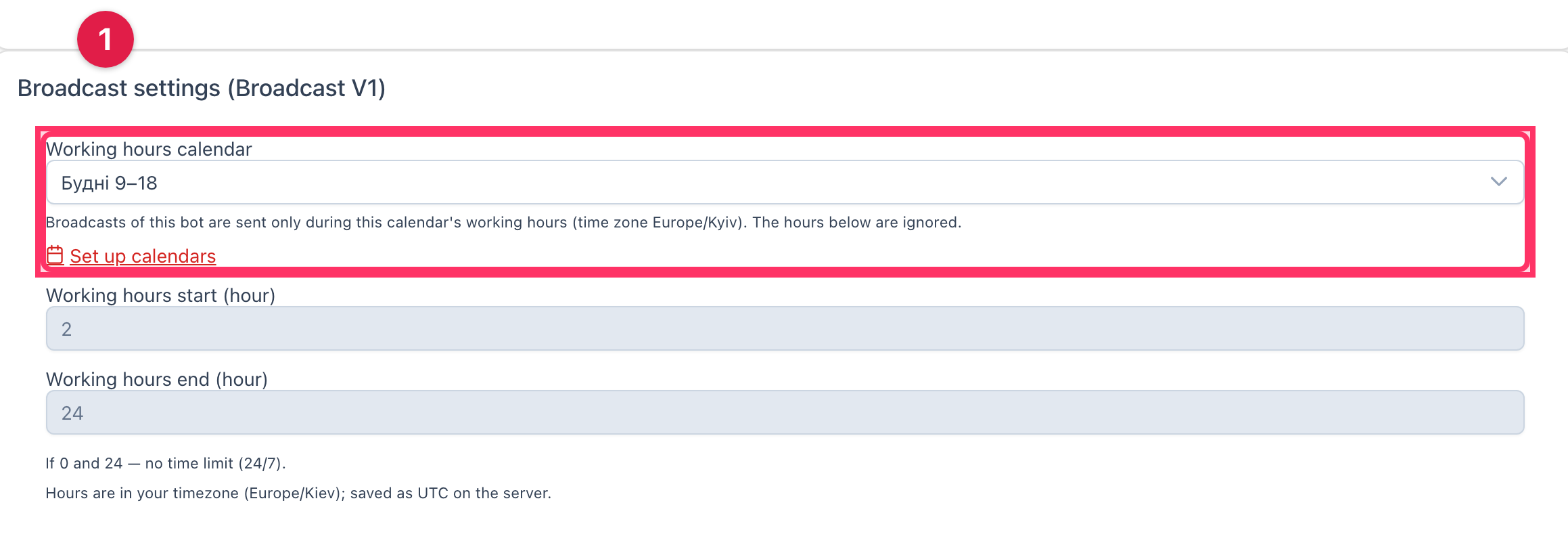
- Open the Broadcast module → the Settings tab.
- In the broadcast settings card, choose the bot.
- In the Working hours calendar field, choose a calendar. No calendar returns the UTC hours.
- A hint with the calendar's time zone appears under the field; the hour fields become inactive because they are ignored.
- Click Save and confirm the change.
If the calendar you need is not in the list, follow the Set up calendars link (shown if you have access to the Calendars section).
What happens next
New one-time broadcasts of this bot start only during the calendar's open time. If the window is closed, the broadcast waits for the next opening, and the broadcasts list shows "Waiting…" or "Paused until working hours (until …)".
How to check it worked
- After saving, the selected calendar's name is shown and the hour fields are inactive.
- Start a broadcast outside working time — the wizard shows a warning and the list shows "Waiting…".
If something went wrong
- "The calendar gives no working hours. Choose another one." — the selected calendar has no working day or hours. Choose another one or fix the calendar.
- Warning "The calendar … has no reachable working hours" — the calendar was broken after being selected (invalid time zone, no working days). Broadcasts of the bot wait and re-check it every hour; fix the calendar and they continue at once.
- A calendar cannot be deleted or switched off — the system names the bots where it is selected; first choose another calendar or "No calendar" there.