

Leave an internal note in a queued or closed dialog
An internal note is a message in the dialog that only operators see; the client never receives it. This guide explains how to leave a note for colleagues in a dialog nobody has accepted yet, a dialog Fast Line is handling, or a dialog that is already closed — without accepting the dialog or reopening it.
When you need this
- A client is waiting in the queue and you want to give a hint to whoever accepts it: "VIP client, call back before 6 PM".
- Fast Line is handling a dialog and you want to leave context for colleagues in case it is handed over to an operator.
- A client called after the chat or ticket was closed, and you need to record the outcome in the same dialog.
What to know
- Only colleagues see the note — with your name, avatar and time. The client receives nothing.
- A queued dialog stays in the queue, unaccepted: you are not added as a participant and it does not move to your dialogs.
- In a dialog Fast Line is handling, Fast Line keeps replying to the client. The note does not get into its replies.
- A closed dialog or ticket stays closed: the note does not reopen it or change its status.
- Colleagues get no separate notification or sound for such a note — they see it when they open the dialog.
- Works only in the new design of the Operator panel. The old design has no note field in these dialogs.
Before you start
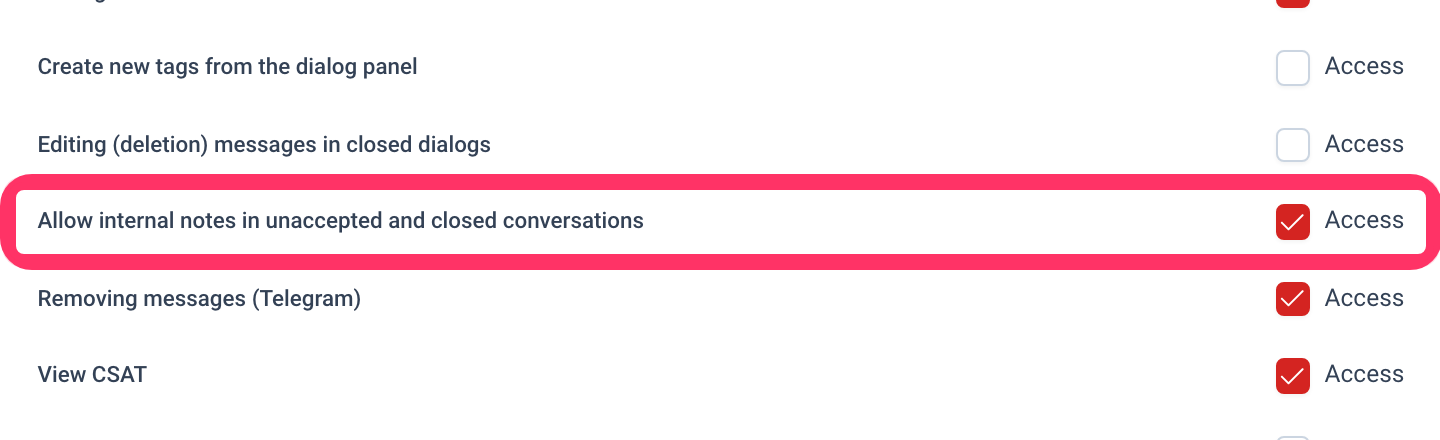
Enable the permission for a role
An administrator does this. By default the permission is off in every role.
- Open Settings → User rights.
- Click "Edit" next to the role, for example a supervisor or a senior operator.
- Scroll to the "Additional settings of the Operator panel" block.
- Tick "Access" next to "Allow internal notes in unaccepted and closed conversations". It comes right after "Editing (deletion) messages in closed dialogs".
- Make sure the role also allows internal notes — the "Allow creating internal notes" permission. Without it the field does not appear.
- Click "Save".
More about roles — Configure roles.
Leave a note
- Open a queued dialog, a dialog Fast Line is handling, or a closed dialog or ticket.
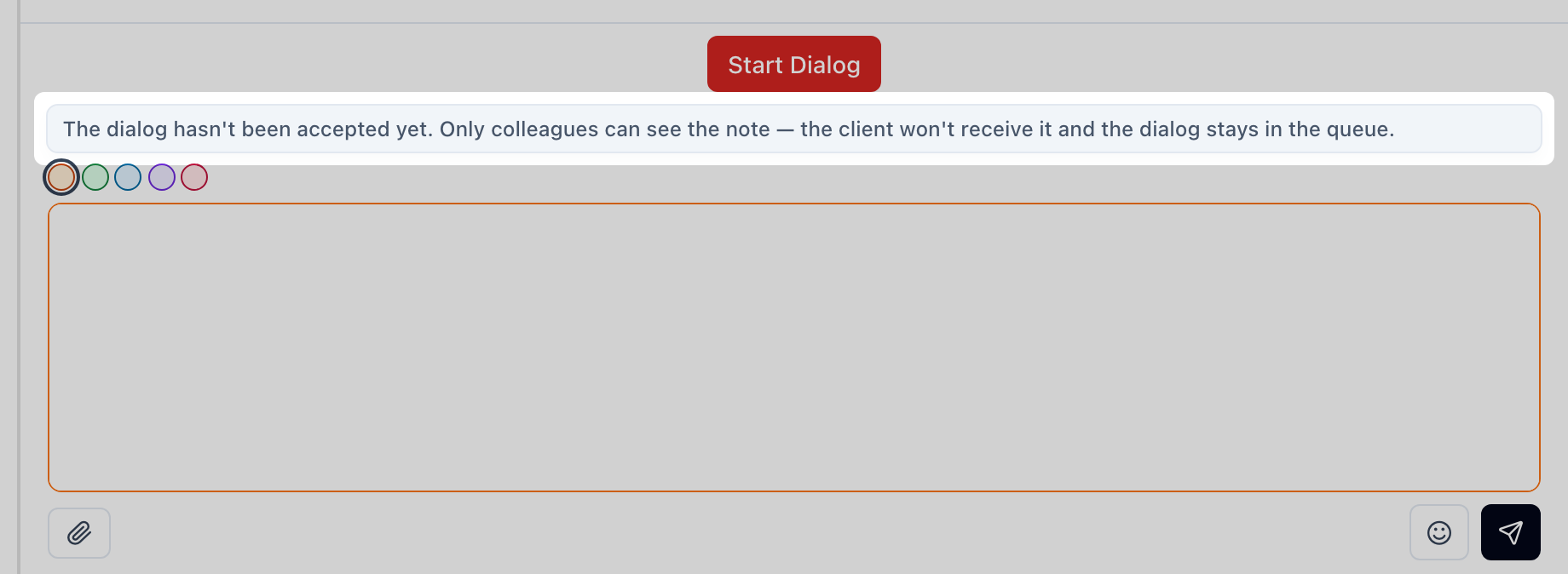
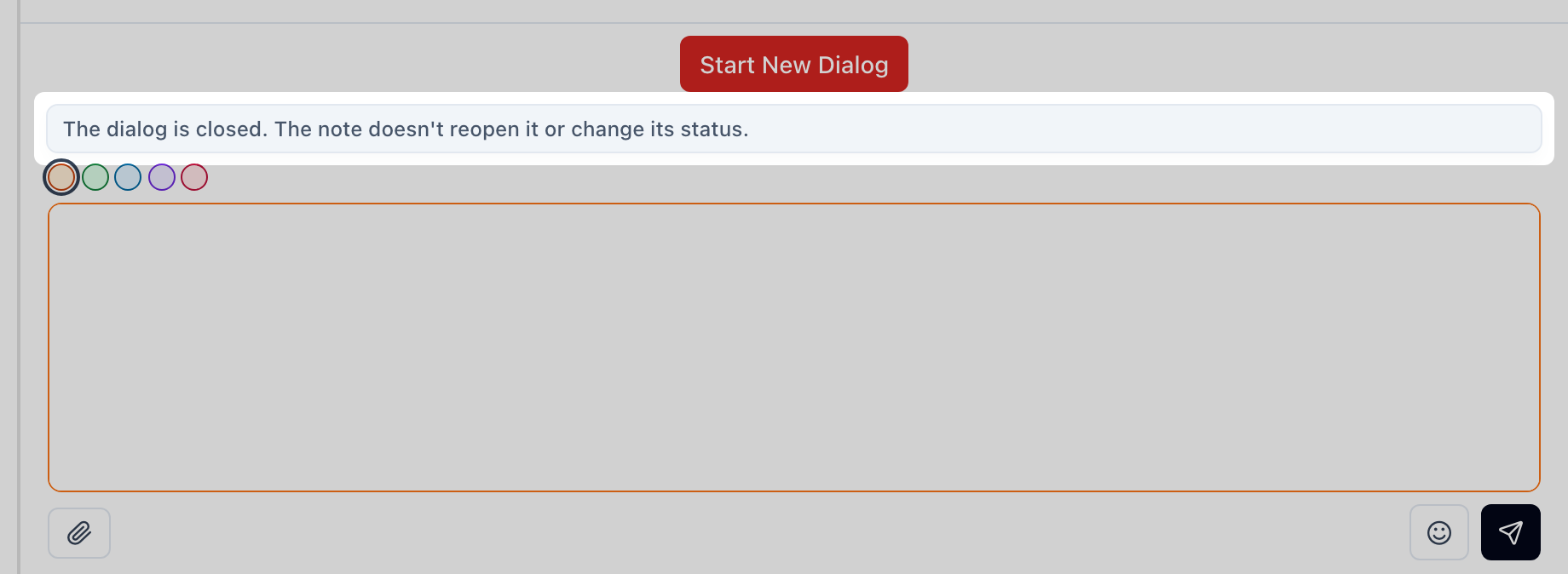
- At the bottom of the window, below the button, a field for an internal note appears:
- in the queue — below "Start Dialog";
- in a dialog Fast Line is handling — below "Takeover" (if you have the takeover permission) or "Start Dialog";
- in a closed chat — below "Start New Dialog"; in a closed ticket — below "Reopen ticket".
- A grey strip above the field explains the state:
- in the queue: "The dialog hasn't been accepted yet. Only colleagues can see the note — the client won't receive it and the dialog stays in the queue.";
- in a Fast Line dialog: "The dialog is handled by Fastline. Only colleagues can see the note — the client won't receive it and the dialog status won't change.";
- in a closed dialog: "The dialog is closed. The note doesn't reopen it or change its status."
- Type the text. Add an emoji or attach a file if needed — the field has no other actions and no "Reply / Internal note" switch: everything you send is a note.
- Send the note with the send button or with the keys: Enter if your hot keys are set to send with Enter, otherwise Ctrl+Enter. See Configure hot keys.
An orange note card with your name and time appears in the feed.
If you started typing a note and then clicked "Start Dialog", the text stays in the field in "Internal note" mode — it will not go to the client by accident.
How to check it worked
- The feed shows an orange card with your name, and it stays after a page reload.
- A queued dialog stayed in the queue in the same place; a closed one stayed among closed dialogs.
- The client received no message.
What to know about closed tickets
- The ticket stays closed, but you as the note author are added to the ticket participants.
- The ticket history gets an internal note entry.
- If a scenario is set to start on the "Internal note in ticket" event, it runs just as for an open ticket. Check that such a scenario does nothing unwanted on a closed ticket — for example, does not message the client or change the ticket. See Internal events trigger reference.
Edit and delete a note
- In the queue and in a Fast Line dialog you can edit and delete your note the same way as in a regular dialog. How — Edit, delete and colour an internal note.
- In a closed dialog or ticket a note cannot be edited. You can delete your note only if your role has the message deletion permission and "Editing (deletion) messages in closed dialogs".
If there is no field
- Your role lacks one of the two permissions — ask your administrator to enable them.
- Another operator is handling the dialog (status "in progress", you are not a participant) — you cannot leave a note there without joining.
- The ticket was merged into another one — there is no field, as before.
- You are using the old design of the Operator panel — the feature is available only in the new one.