

Assign a chat to an operator
Assigning lets a supervisor connect a chosen operator to a chat at once, without a request and without waiting for an answer. This guide shows where to find the action, what the assignment window does, and which limits to know in advance.
When you need this
- A chat is waiting in the queue or in the "new" state and you need a specific operator for it.
- The operator who owns the chat does not answer and the dialog must go to a colleague.
- You need to add an operator to a chat and disconnect the current one.
- An operator is already at the dialog limit, but the chat has to go to them anyway.
What to know first
- Assigning is an instant action: unlike transferring a chat, the colleague does not confirm it. The operator is connected to the chat right away.
- The "Assign to operator" action is available only to users whose role has the "Assign chats to operators" right (root administrators always have it). To grant the right, see Configure roles.
- You can assign a chat or a comment in the "new", "in queue" or "in progress" status. For a closed chat the action is disabled (hint "The chat is closed"); the same for a ticket — it has its own "Assign ticket" action.
- The chat may already have operators: the window then shows a "Currently in the chat" block with a "Disconnect from the chat" checkbox (on by default).
- An operator who is not taking chats (for example, the "Offline" status) is listed at the bottom, and the window asks for confirmation before assigning.
- The "Show only online operator when transferring dialogues" setting does not apply in the assignment window: you see all operators.
Before You Start
Step-by-Step Instructions
- Find the chat: in the appeals table, in the chat list on the left, or in the queue.
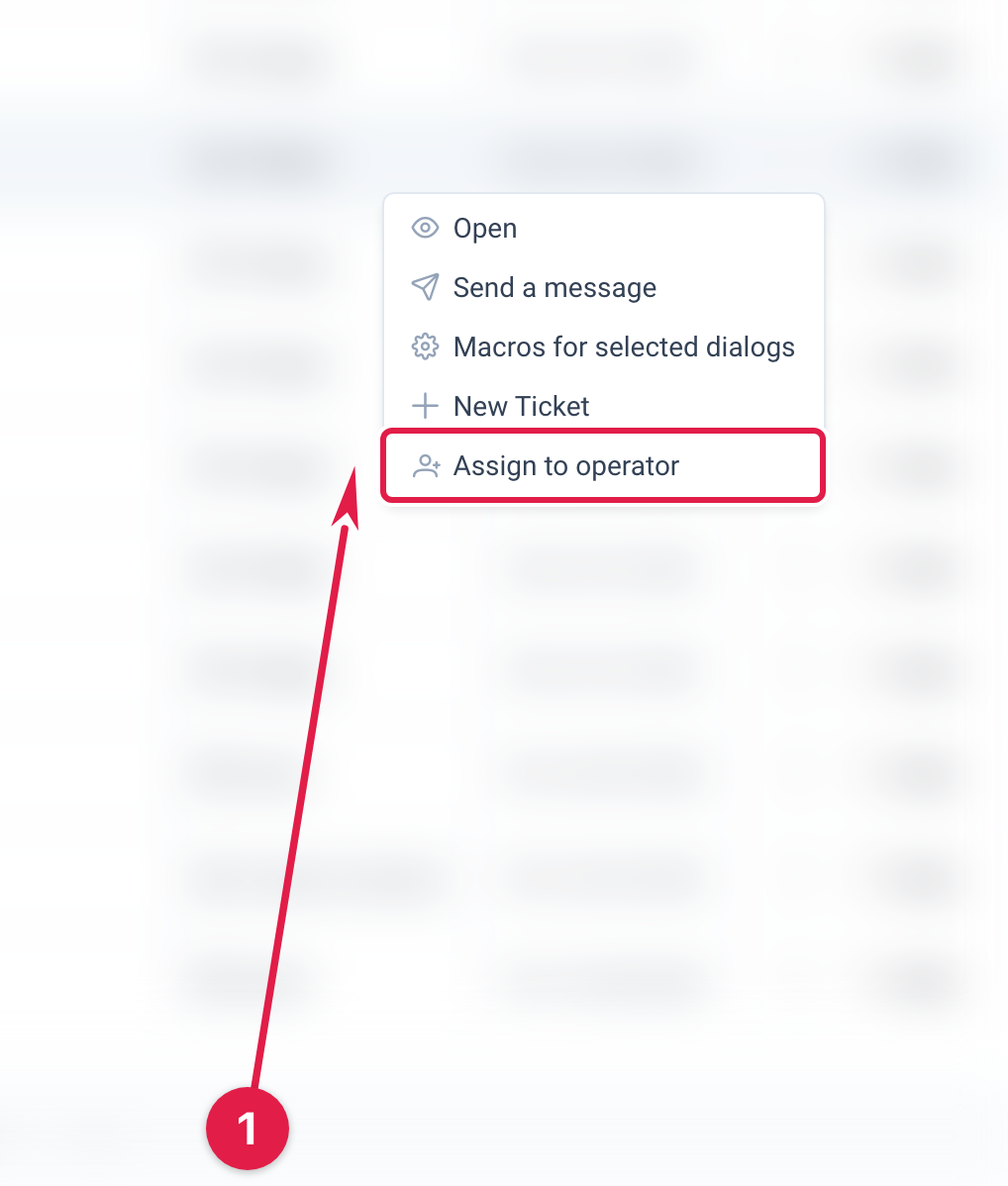
- Open the chat menu in one of these ways:
- in the table — the "⋮" menu in the row; in the new operator panel interface, also a right click on the row;
- in the chat list on the left — a right click on the chat.
- Choose "Assign to operator".
- In the window, find the operator by name (search) and check their status and load ("N of M chats").
- If the chat already has operators, decide in the "Currently in the chat" block whether to disconnect them: with "Disconnect from the chat" on, they leave the chat and get a notification; with it off, they stay in the chat together with the assignee.
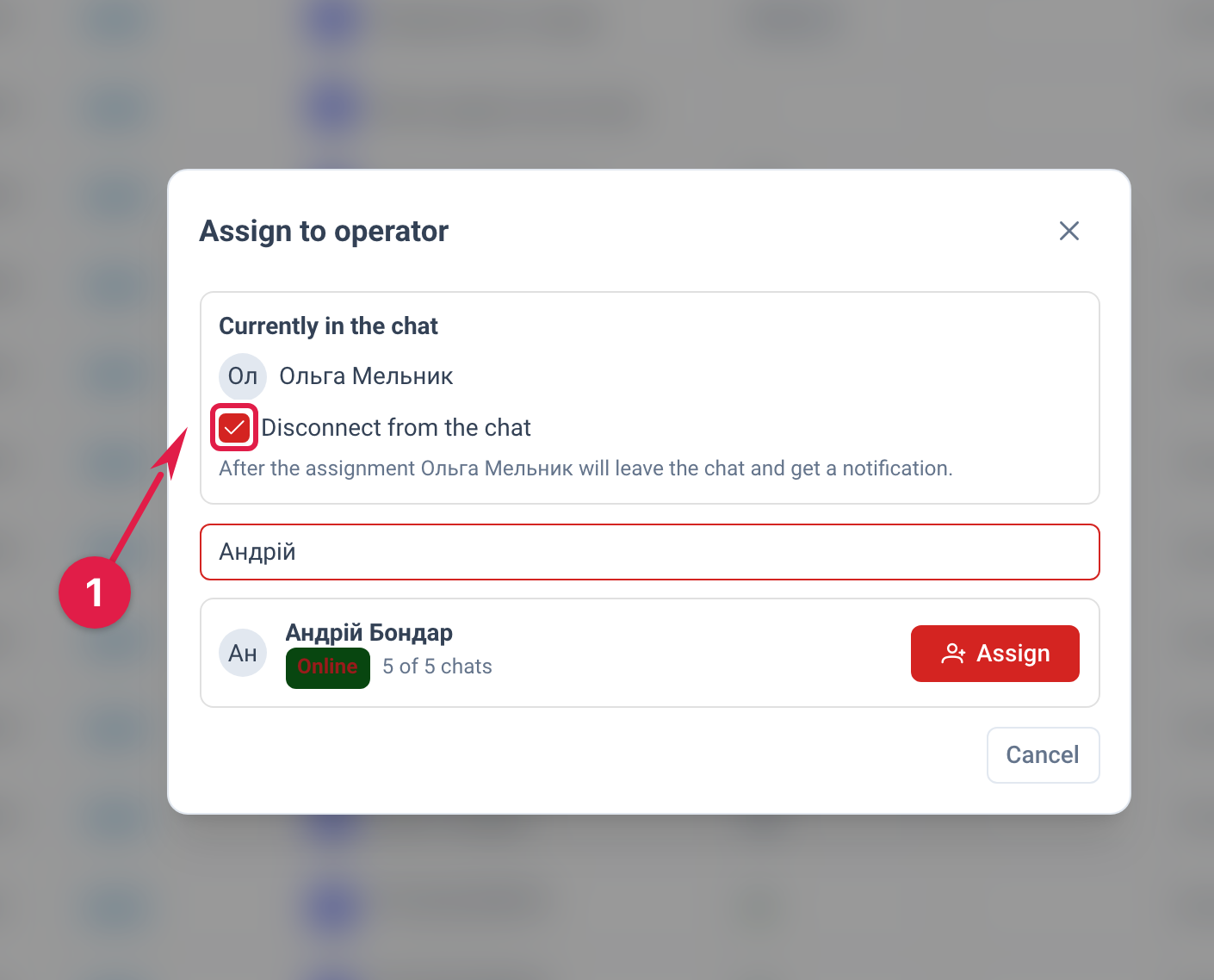
- Click "Assign" on the operator's card.
- If the operator is not taking chats now, the window shows a confirmation: "{name} is not accepting chats right now. Assign anyway? The client will wait for {name}'s reply." Click "Assign" to continue.
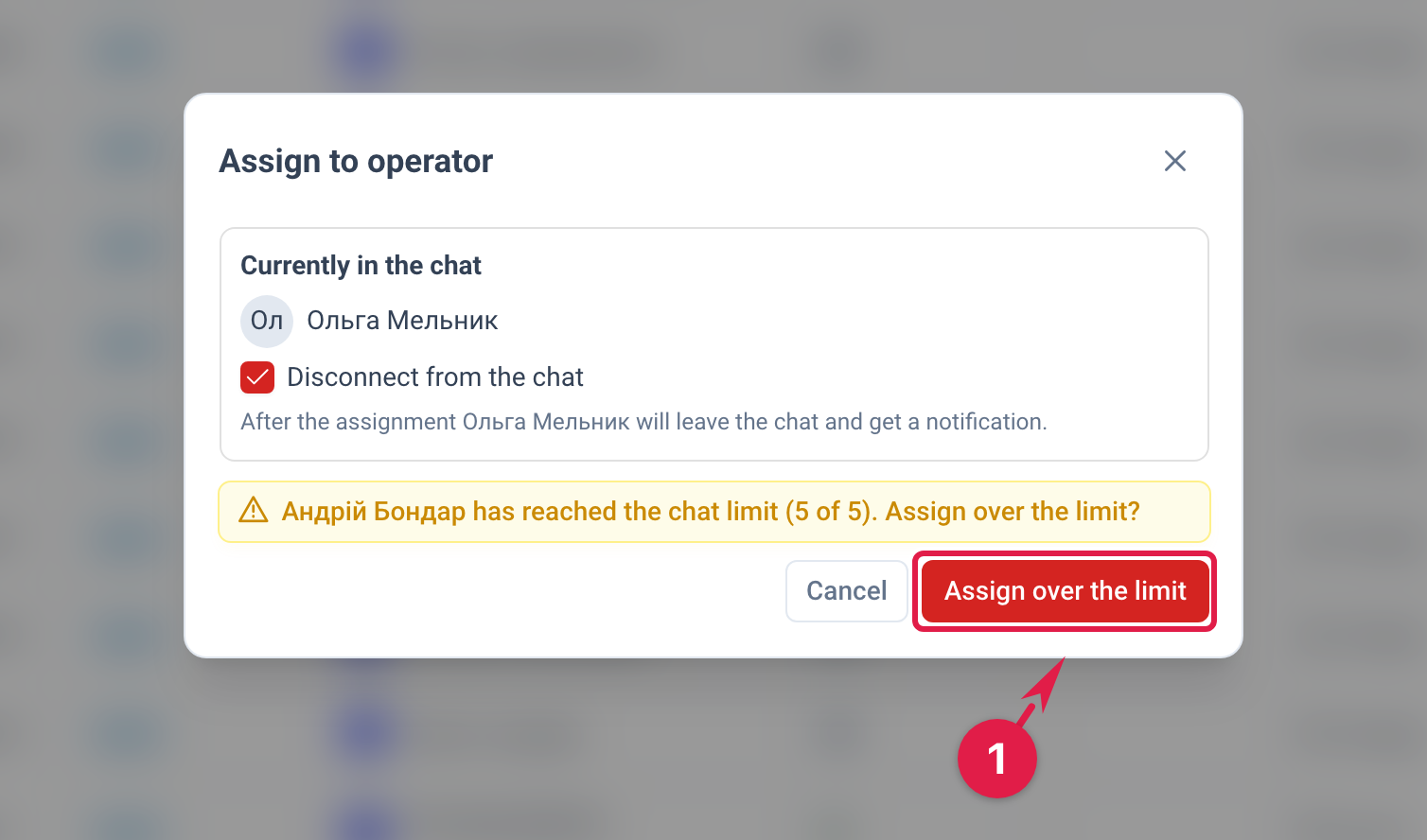
- If the operator has reached the dialog limit, the window asks whether to assign over the limit. Click "Assign over the limit" to confirm, or "Cancel".
What Happens After
- The window closes and you see "Chat assigned to {name}". If you disconnected current operators — "Chat handed over to {name}. Disconnected: {names}".
- The operator is connected to the chat and gets a reassignment notification if Notification Center is enabled.
- If you disconnected operators, a system line about the handover appears in the conversation. For a free chat, the conversation shows only the line that the operator joined.
- The queue distribution audit shows an "Assigned by a supervisor" event listing the disconnected operators (marked if disconnecting failed).
Limits
-
What the client sees is the same as for a chat transfer. It is not configured for assignment alone; the general operator settings apply (Configure operators):
"Show the client the first operator's name…" "Show the client a message when an operator disconnects" The client sees on off (default) no service messages; the next reply comes with the assignee's name on on "{disconnected} disconnected" (only if you disconnected the operator whose name the client saw), then replies with the assignee's name off off (default) "{assignee} connected" (if operator connection messages are on), no "disconnected" off on "{assignee} connected" (if operator connection messages are on) and "{disconnected} disconnected" Without the "Disconnect from the chat" checkbox and with "Show the client the first operator's name…" on, the client keeps seeing the assignee's replies under the name of the operator who took the chat first.
-
The chat does not return to the queue by itself. If the assigned operator does not respond, the chat stays with them; returning it to the queue is manual.
-
The time-to-connect countdown stops at the moment of assignment: the chat is no longer timed as a queued chat.
-
An offline operator sees the chat after signing in. The chat is attached to them at once, but they can act only after they log in.
-
In statistics and reports a replacement looks like a second operator joining, not like a chat transfer. If you disconnected the operator who owned the chat, statistics still count them as the first operator and the assignee as the second. The name the client sees does not depend on this (see the table above).
-
In the old design of the panel, the system line about the handover is shown untranslated.
How to Verify It Worked
- You saw "Chat assigned to {name}".
- The "Operator" column of the appeals table shows the assigned operator.
- The conversation has a line that the operator joined; if you disconnected others, also a line about the handover.
FAQ
Why is there no "Assign to operator" item in the menu? Your role does not have the "Assign chats to operators" right. Ask an administrator to enable it in the role settings.
Why is the item disabled? Hover over it: the hint explains the reason — the chat is closed, it is a ticket, or the appeal type cannot be assigned.
I got "The chat has just changed. Refresh the list". While you were choosing, someone else was connected to the chat or the operator is already in it. Refresh the list and try again.
The operator has reached the dialog limit — what now? Confirm "Assign over the limit" in the window, or choose another operator.