

How to Upload a New File?
When a client sent a document that needs to be saved in the system, or you want to add an important file for work, this instruction will help you quickly upload it.
When It Will Be Useful
- A client sent a screenshot of a problem that needs to be saved.
- You need to add an instruction or reference guide for working with clients.
- You want to save an important document so it's available to the entire team.
What's Important to Know
- Upload — this is the process of copying a file from your computer to the system.
- Progress bar shows how quickly the file is uploading.
- Supported formats — images (JPG, PNG), documents (PDF, DOC), archives (ZIP).
Before You Start
How to Do It
- Open the File manager — in the main menu go to
Menu -> File manager. - Click the "Upload" button — it's located in the upper part of the screen.
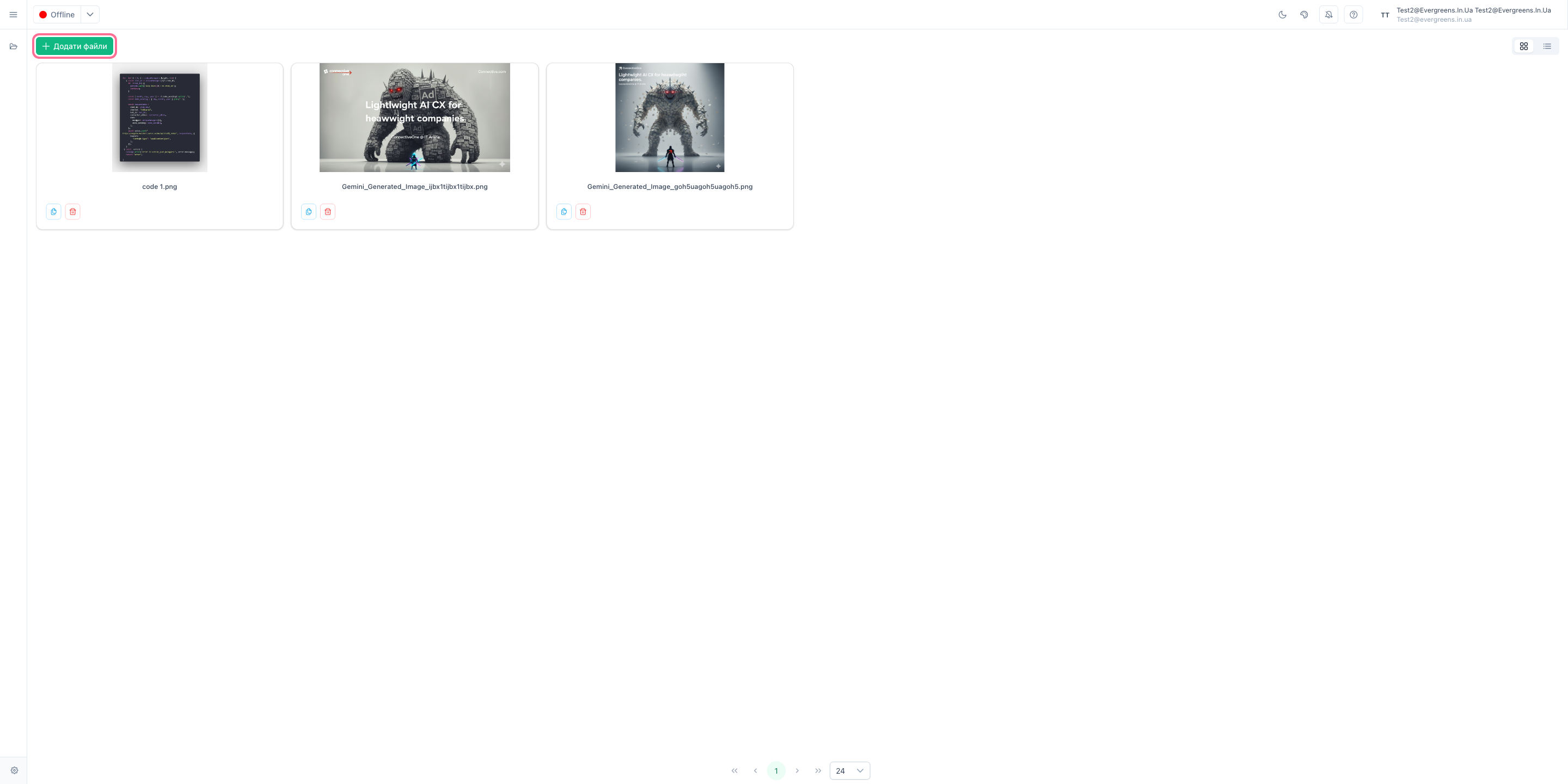
- Select a file — in the window that opened, find and select the file on your computer.
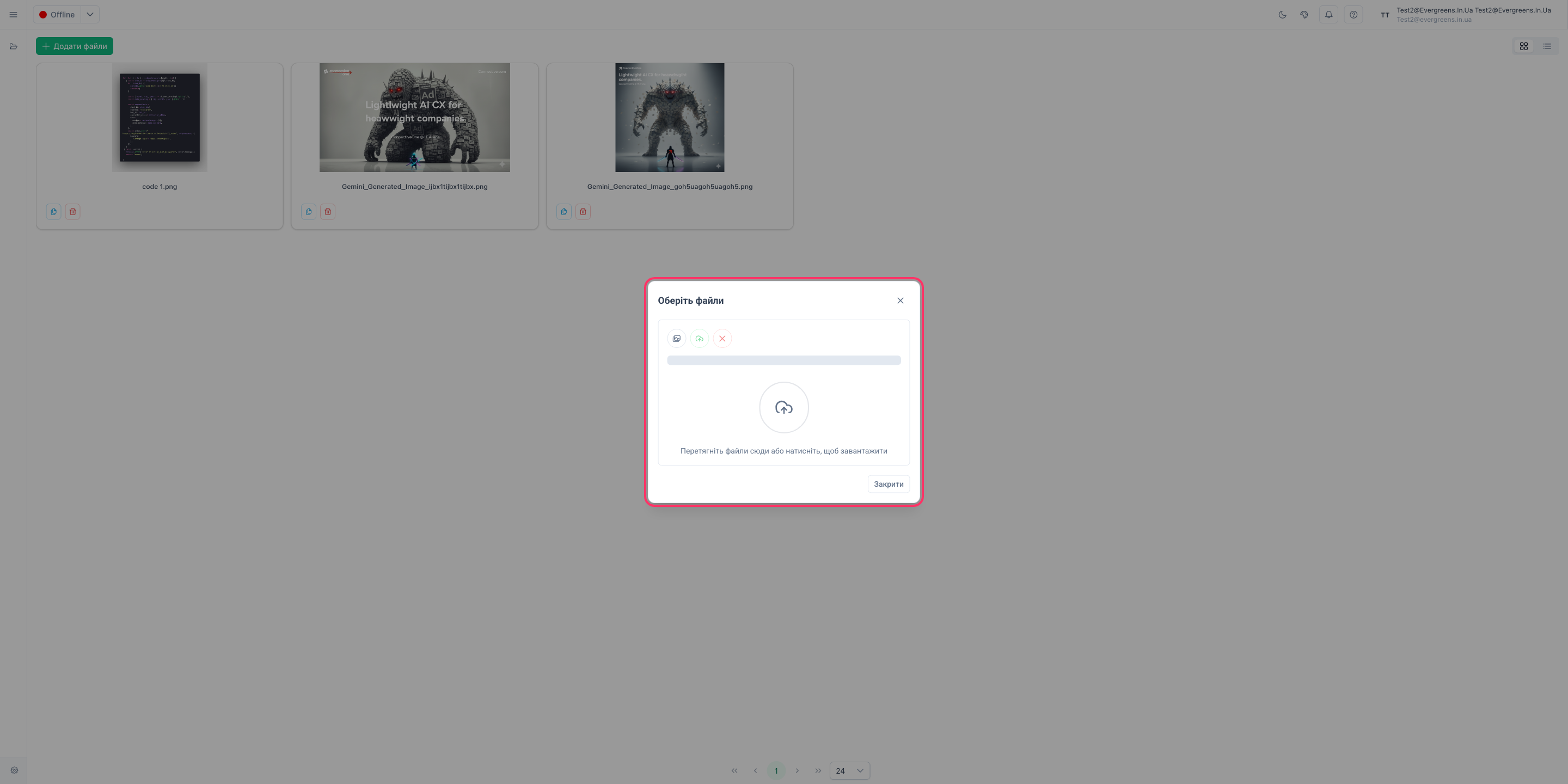
- Wait for upload — the system will show a progress bar while the file is uploading.
- Verify upload — after completion, the file will appear in the file list.
- Copy the link (optional) — next to the completed file in the upload window, click the
Copybutton to get a link right away for pasting into a message or scenario. Learn more — How to copy a file link.
What Happens After
The file is saved in the system and available to all users with access to FileManager. You can find it in the file list and use it in your work.
How to Verify Everything Worked
- The file appears in the file list
- The file name and size are displayed correctly
- You can open or download the file