

How to Delete a File or Folder?
When a file is no longer needed or you accidentally uploaded the wrong document, this instruction will help you quickly remove it from the system.
When It Will Be Useful
- You uploaded a file with an error and need to delete it.
- A document is outdated and no longer relevant.
- You want to remove test files after checking the system.
What's Important to Know
- Deletion — this is a permanent operation, the file cannot be recovered.
- Confirmation — the system will ask if you are sure you want to delete the file.
- Folders — when deleting a folder, all files inside it are deleted.
Before You Start
How to Do It
- Open the FileManager module — click
Appsin the main menu, thenFileManager. - Find the file — in the file list, find the one you need to delete.
- Click the "Delete" button — the button with a trash icon is located in the file card.
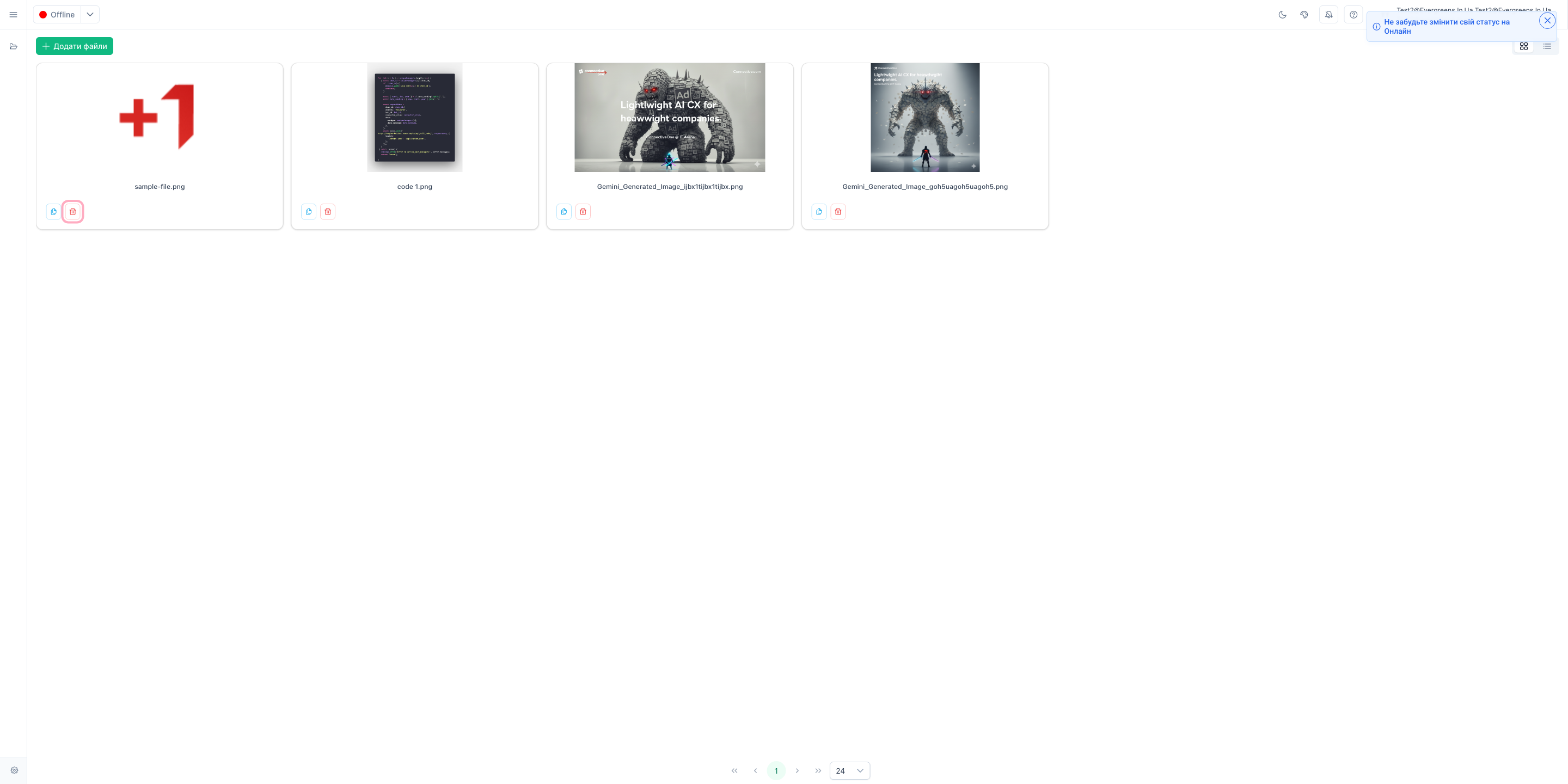
- Confirm deletion — in the window that appeared, click "Yes" or "Delete".
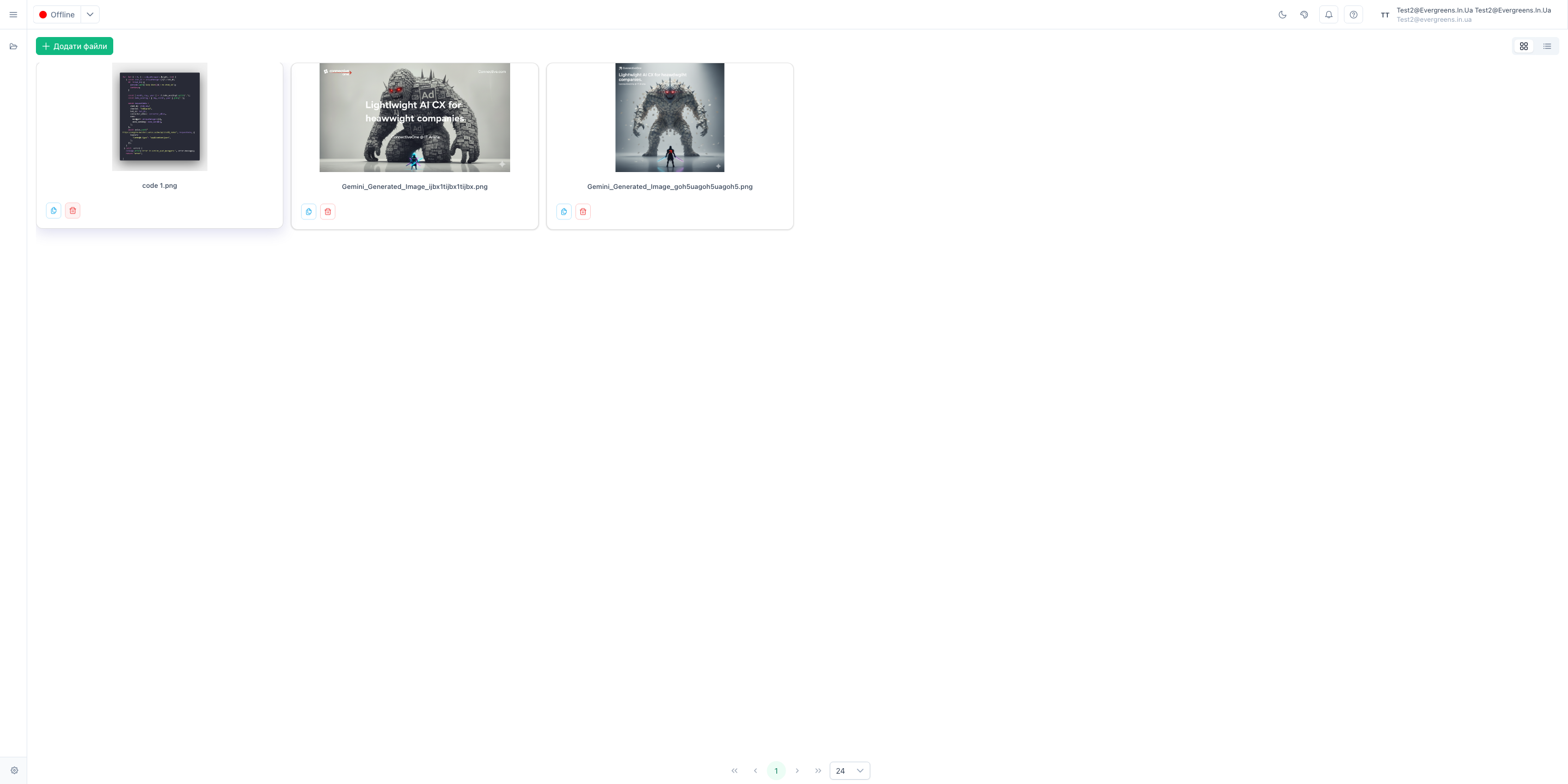
What Happens After
The file is permanently removed from the system and will no longer be available to anyone.
How to Verify Everything Worked
- The file no longer appears in the file list
- The system shows a success message
- The file cannot be found when searching