

How to View the File List?
When you need to find a document, image, or any other file that you uploaded earlier, this instruction will help you quickly open the file system and see everything you have.
When It Will Be Useful
- You need to find a file you uploaded yesterday or last week.
- You want to see what documents are in the system before working with a client.
- You need to verify that a file uploaded correctly after uploading.
What's Important to Know
- File system — this is where all your files are stored, organized in folders.
- File list shows the name, size, and last modification date of each file.
- Folders are displayed with a folder icon, files — with a file icon.
Before You Start
How to Do It
- Open the FileManager module — click
Appsin the main menu, thenFileManager. - Wait for loading — the system will show a list of files and folders in the root directory.
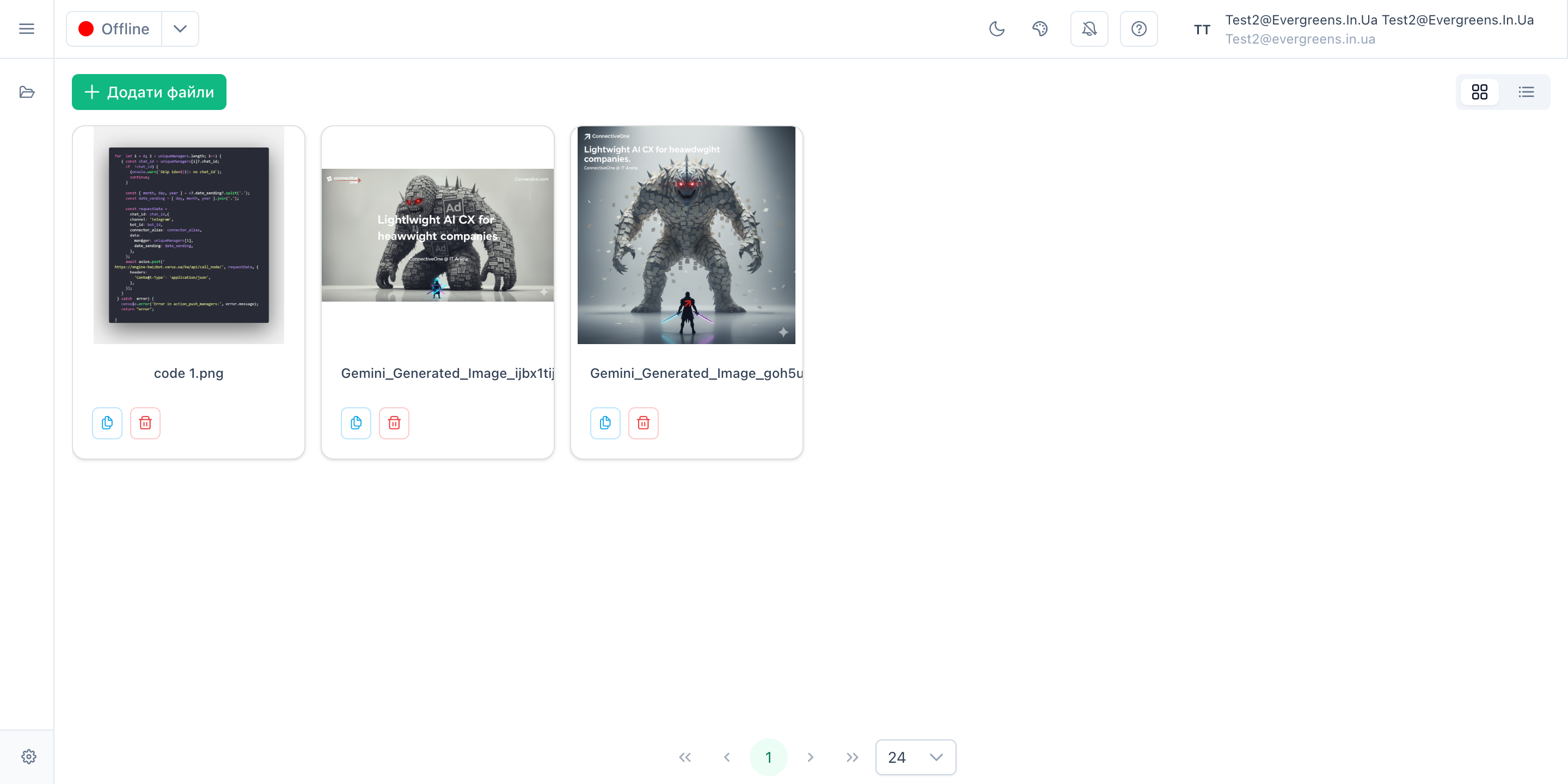
- View the list — you will see all files with their names, sizes, and modification dates.
What Happens After
You see a complete list of files and folders available to you. You can click on a folder to go inside, or on a file to work with it.
How to Verify Everything Worked
- The file list displays without errors
- You see file names, their sizes, and dates
- Folder and file icons display correctly