

Listen to a Client's Voice Messages
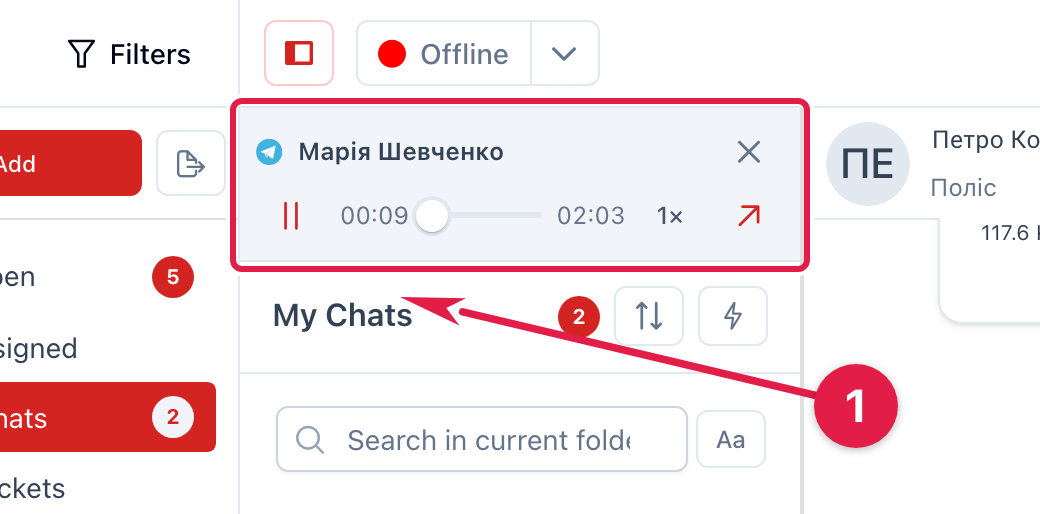
You can listen to a client's voice message and keep working: answer other chats, open a table or a dashboard. The sound does not stop while you stay in the "Operator Panel" module. A mini player above the dialog list controls it.
When You Need It
- The voice message is long (several minutes) and you want to answer other clients meanwhile.
- You need to check a table or a dashboard without losing what you are listening to.
- You want to speed playback up or jump to a specific moment.
What to Know
- One voice message plays at a time. Start another one and it replaces the previous one.
- The player is visible only while it holds a voice message. When the message ends, the player stays paused at the start until you close it (the cross) or start a new voice message.
- The sound stops when you leave the "Operator Panel" module (another menu module, settings, signing out) or close or reload the tab. Switching chats, folders, search and panel pages (table, dashboard, supervisor) does not stop it.
- A call recording in a chat has its own player: it does not stop a voice message and vice versa.
- No feature flag and no extra right is needed — the player is available to every operator.
Start a Voice Message
- Open a chat with a voice message.
- Press "▶" on the voice message card (audio attachments work the same way).
- The player appears above the dialog list: the channel icon and the appeal title, the time, a slider, the duration.
Press "▶" on the same voice message again to pause; press it once more to continue.
Player Controls
| Control | What it does |
|---|---|
| Play / Pause | Stops and resumes the sound |
| Slider | Seek: click or drag, or use the keyboard arrows |
| 1× / 1.5× / 2× | Playback speed; each press switches to the next one. The choice is remembered for the next voice messages |
| Go to message | Opens the chat that holds this voice message and highlights it. The sound keeps playing |
| Cross | Stops the sound and removes the player |
If the duration is unknown, the slider is disabled and no duration is shown — you can listen but not seek.
Where the Player Is Shown
- Chats page with the dialog list — above the list.
- Dialog list hidden (collapsed list, phone, embedded mode) — a strip above the chat header.
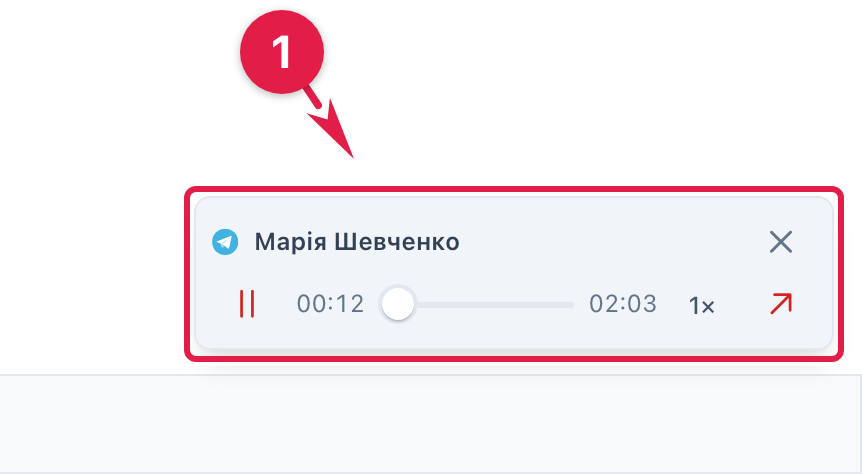
- Other module pages — table, dashboard, supervisor and others — a small plate in the lower right corner. It does not change the page layout; in the table and the distribution audit a scroll margin is left under the last rows so the plate does not cover them.
If Something Goes Wrong
- "Couldn't play the voice message. Open the file from the message." — the file did not load or the browser does not support the format. The player stays; "Go to message" and the cross still work. Open the file from the message card.
- "Message not found in the loaded chat history" — after "Go to message" the voice message is not among the loaded messages of the chat. Load more history and try again.
- The sound stopped after switching to another module — expected: outside the "Operator Panel" the player does not work.